
Karaoke machines are a strange purchase. They cost real money, they hold a fixed catalog of songs nobody asked for, and they spend eleven months of the year in a closet. Meanwhile the TV in your living room already has everything a karaoke station needs: a big screen, speakers, and a browser.
This guide turns that TV — or any PC or laptop — into a free karaoke station with Loopsing. It runs in the browser, and there is nothing to download. Ten minutes, start to first song.
What you need
- A screen with a browser. A Smart TV, a laptop plugged into the TV, a PC monitor, a projector — anything that can open loopsing.com.
- An internet connection. Loopsing streams karaoke videos from YouTube, so a stable 5 Mbps is enough; 10 Mbps or more means no buffering.
- Phones. Every guest uses their own phone to pick songs. No app; the browser is enough.
- A microphone — optional. Loopsing shows the lyrics and plays the track; people sing along live, exactly like a bar. A mic plugged into a speaker or PA makes it louder, not possible.
Step 1 — Get Loopsing onto the big screen
Pick whichever of these matches what you own. If you have more than one option, go top to bottom.
Smart TV browser (easiest). Most Samsung, LG and Sony TVs ship with a web browser. Open it, go to loopsing.com, and press Host a session. The TV becomes the karaoke display — video, lyrics, queue and the Announcer — and the TV remote is all you need. Samsung and LG browsers tend to be the most capable; if yours feels sluggish, use one of the options below.
Laptop or PC with an HDMI cable (most reliable). Plug the laptop into the TV, open loopsing.com/host in Chrome, Firefox or Edge, and mirror or extend the display. HDMI carries audio too, so the TV speakers just work. Press F11 for full screen. This is the setup we recommend for anything that has to go smoothly — recurring nights, office parties, birthdays.
Chromecast, AirPlay or screen mirroring (wireless). Open Loopsing on a laptop or phone, start the room, then cast the Chrome tab (or mirror the screen) to the TV. Keep both devices on the same Wi-Fi, ideally the 5 GHz band.
Fire TV Stick, Roku or Android TV (cheap upgrade for an older TV). Install a browser on the stick — Silk or Firefox on Fire TV, Chrome on Android TV — and host from there. A Bluetooth keyboard makes the one-time room setup faster.
Pro tip: A projector works exactly like a TV. HDMI from a laptop into a projector plus a Bluetooth speaker is the whole backyard-karaoke setup.
Step 2 — Create the room
Press Host a session, give the room a name, and pick Local — one screen, everyone in the same room. Underneath, Home is the normal free-for-all rotation; Teams splits the room into two sides for a friendly battle.
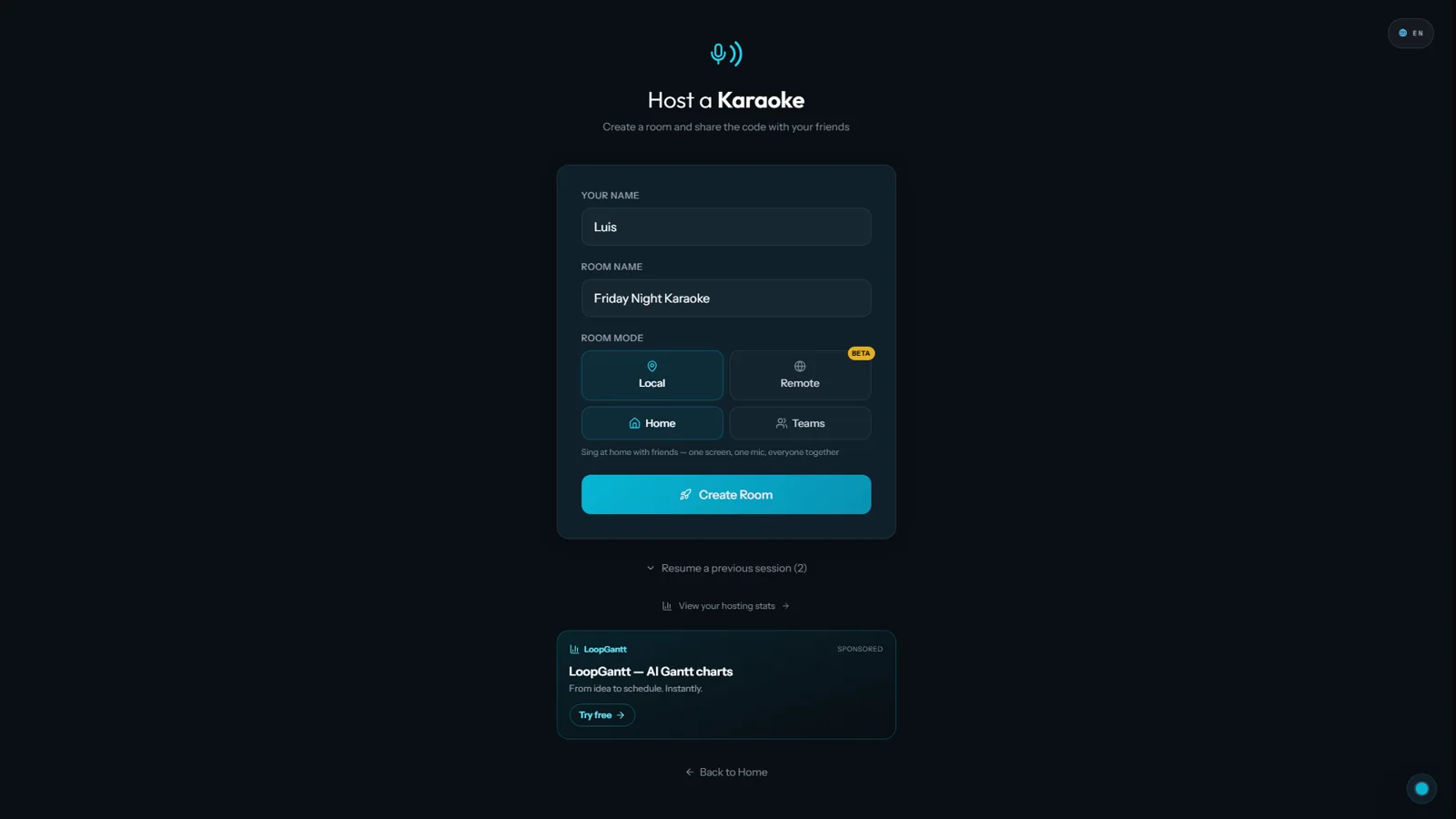 The host form. Local + Home is the setting for a living-room party.
Hit Create Room. The big screen now shows the lobby: a QR code, a six-character room code, and the join link.
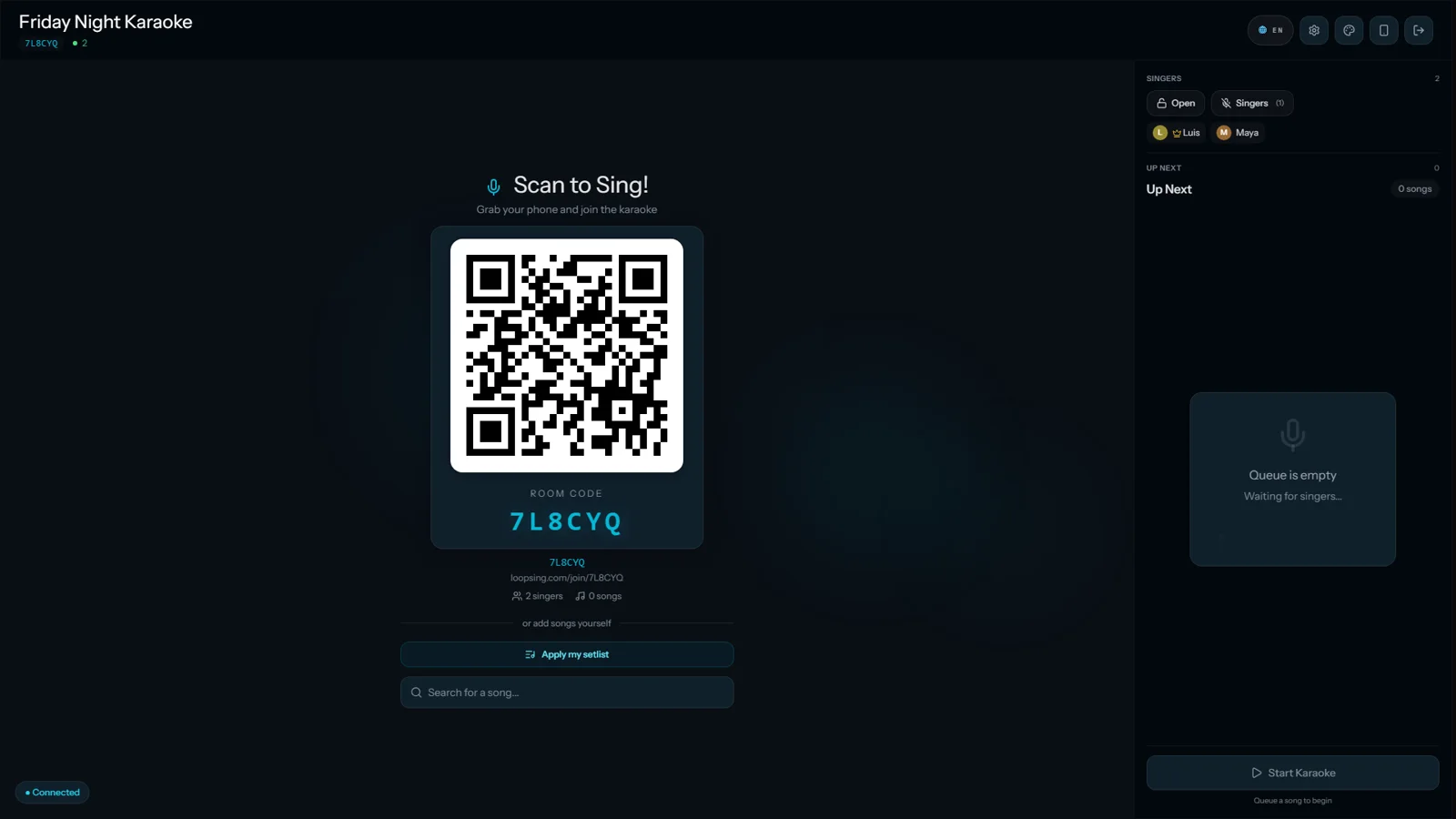 The lobby. Leave this on the TV — it's the invitation.
Step 3 — Everyone joins from their phone
Guests point their camera at the QR code, or type the room code at loopsing.com/join. They enter a name, tap Join & Sing!, and they're in — no account needed.
Pro tip: Scan with the phone's camera app, not from inside Instagram or WhatsApp. In-app browsers drop the connection every few minutes; Loopsing warns people and offers "Open in browser", but skipping the detour is faster.
From their phone, each person searches any song and adds it. Tap a result, then Add to Queue & Sing!
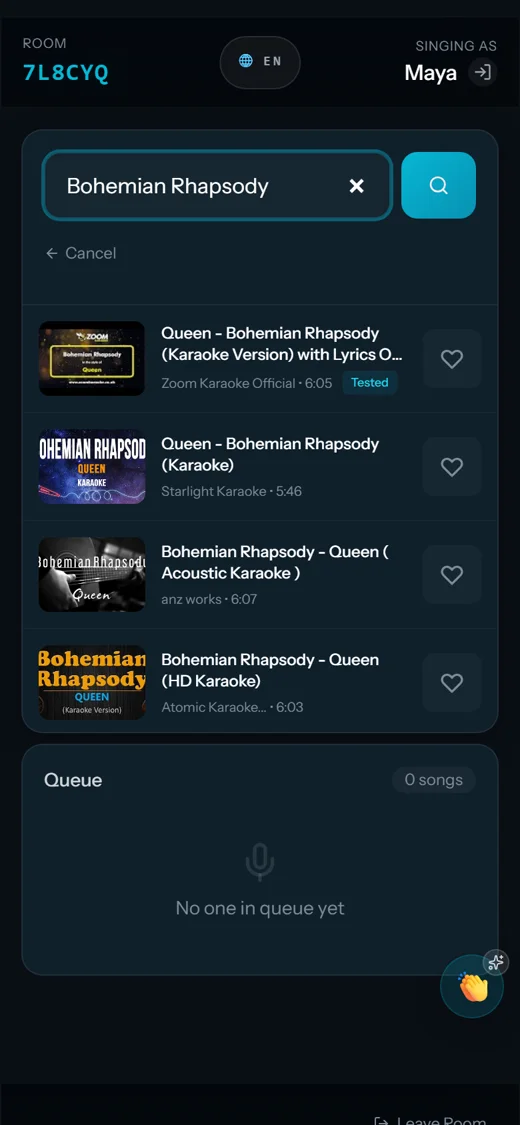 Search from the phone. A "Tested" badge means this version has already played cleanly in other rooms.
Once a song is queued, turns rotate automatically, so nobody hogs the mic. The host screen fills up as songs come in. When there's at least one song, press Start Karaoke.
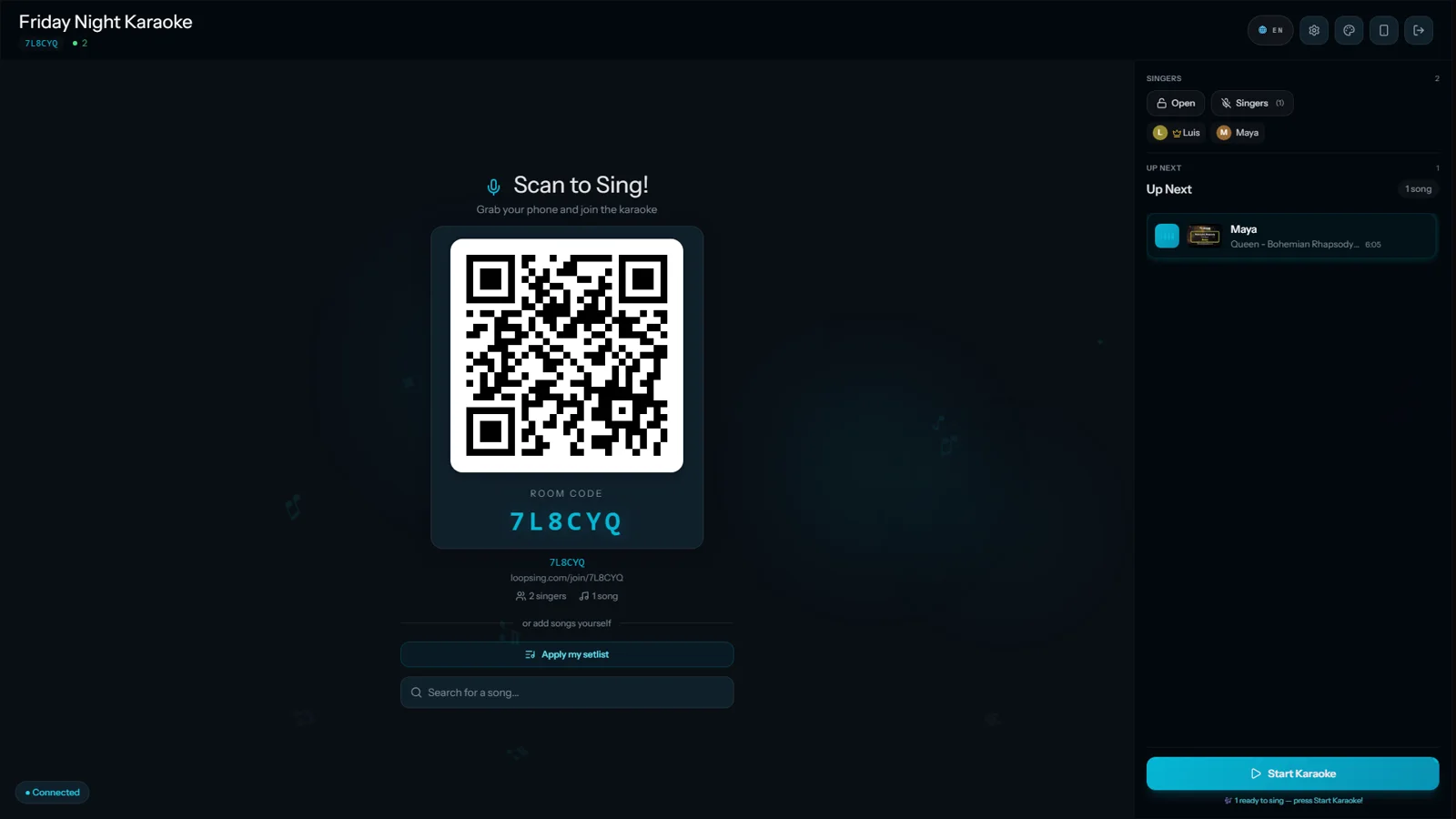 One song in — the night can start.
Step 4 — Sing
The Announcer calls the singer up, the video plays with lyrics on screen, and the phone of whoever is singing shows their turn. On big screens the queue, tonight's Top 3 and the QR live in a side strip, so nothing covers the lyrics.
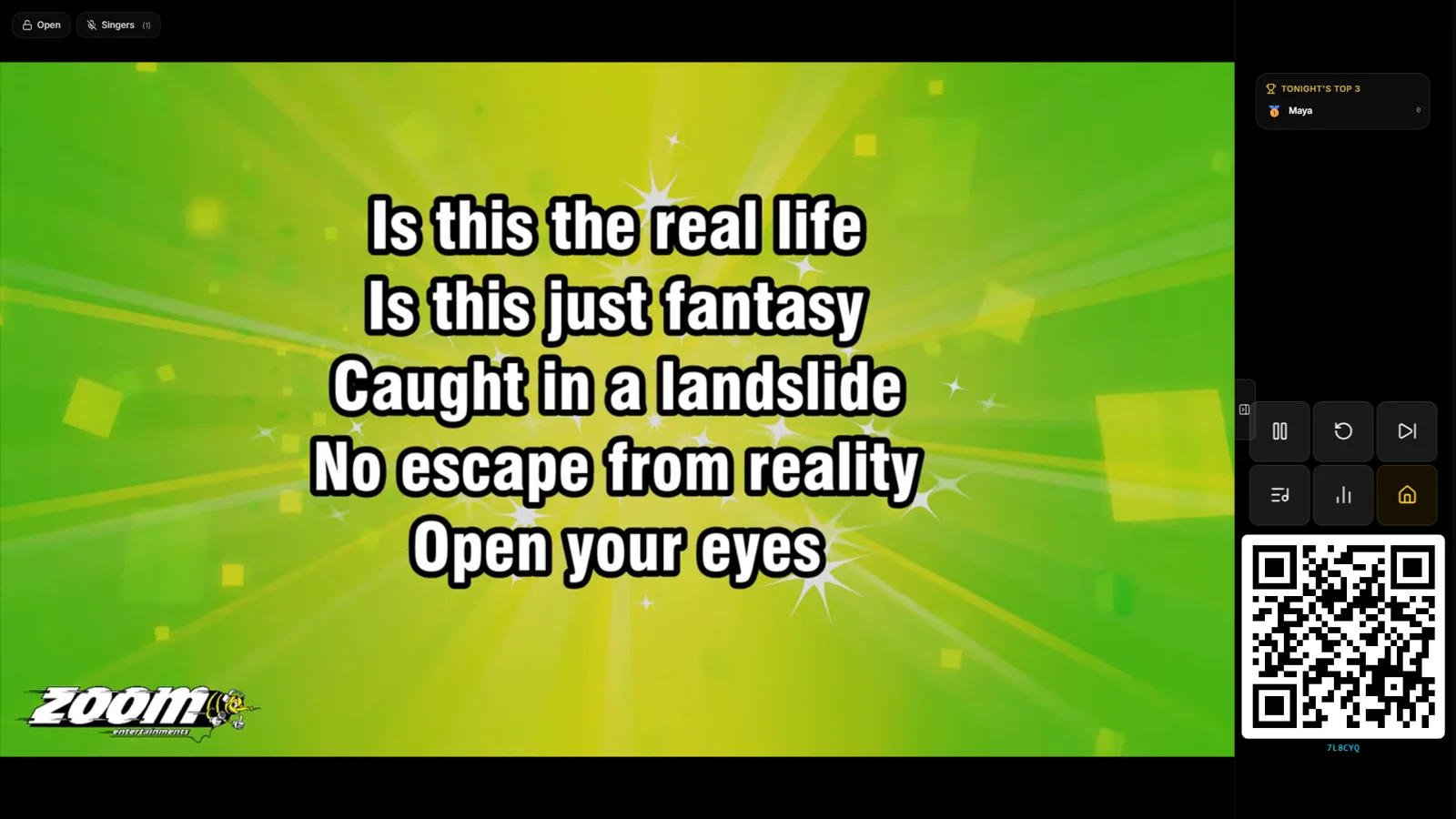 Lyrics on the left, everything else in the strip. Nothing overlaps the words.
Want the video edge to edge for the big finale? Tap the panel button and the strip folds away.
 One tap: full-width video. Loopsing remembers the choice on this device.
Pausing drops a clean curtain over the video — no "More videos" shelf on your living-room TV. Click anywhere to resume.
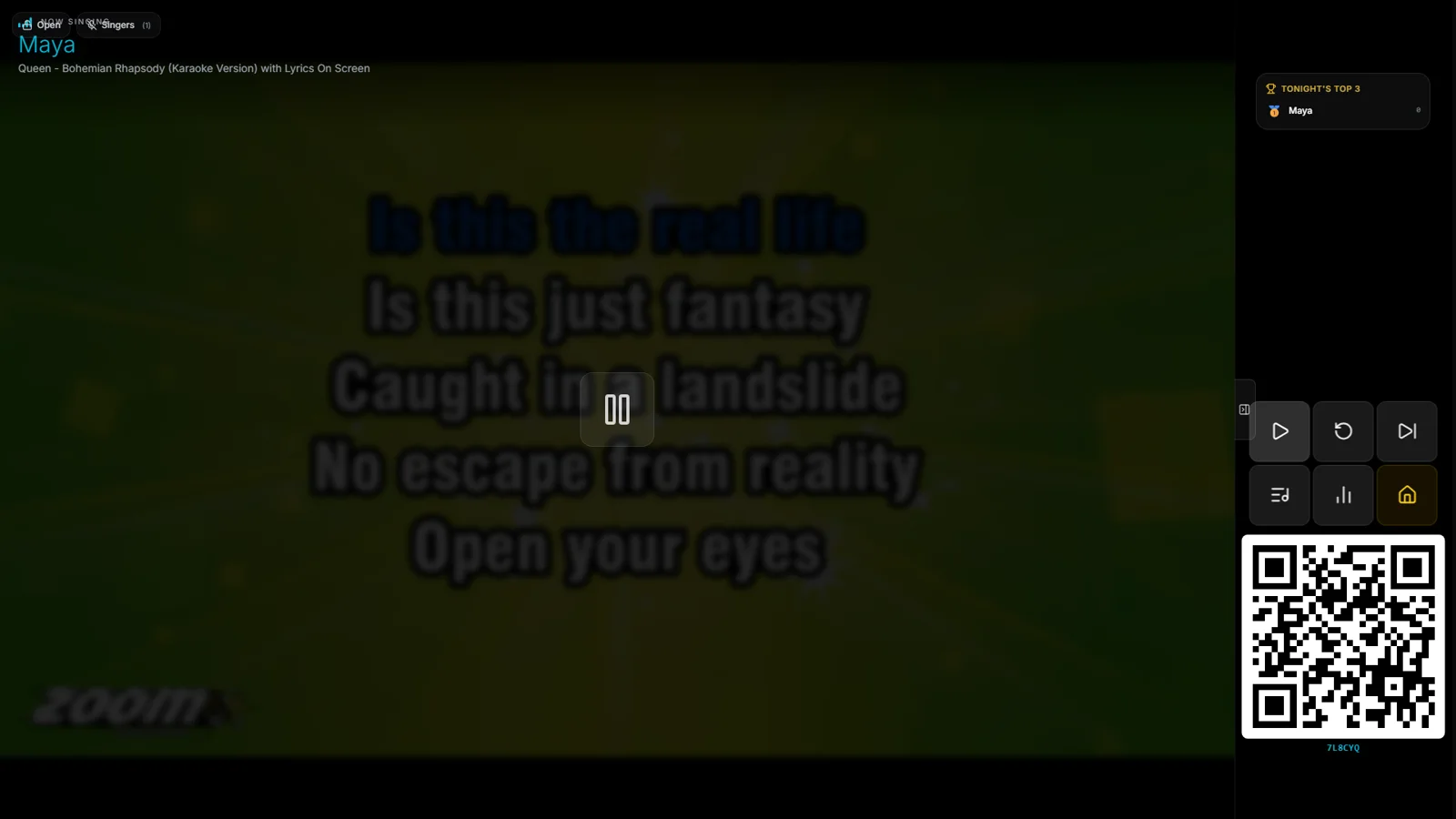 Paused. A curtain, a pause glyph, the singer's name — and nothing else.
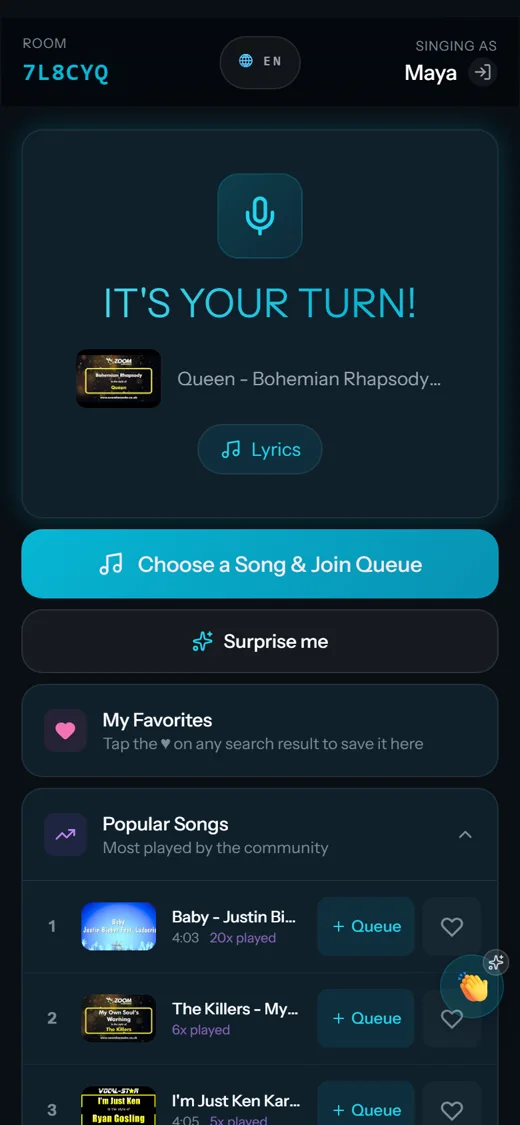 What the singer's phone shows. Everyone else's phone offers Claps and stickers to cheer with.
Step 5 — Tune the room (optional)
The gear icon in the lobby opens the room settings: lobby music on/off and its language, applause, the Announcer and its language, Announcer packs, and how many songs each person sings per turn.
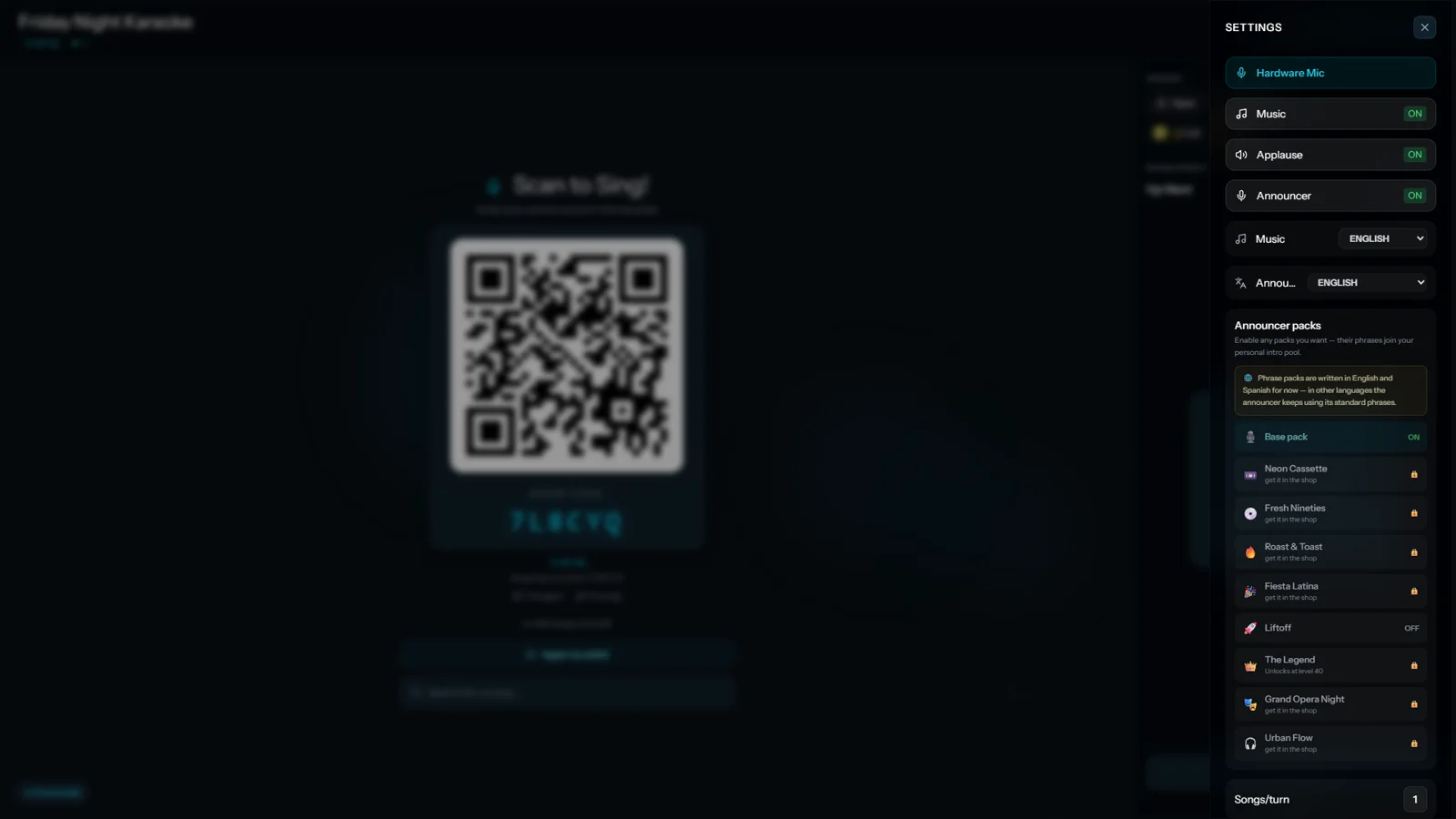 Room settings. Music and Announcer languages are separate — a Spanish Announcer with a Korean lobby playlist is allowed.
Pro tip: The phone icon next to the gear pairs your phone as a remote for the host screen. Sign in with the same host account and you can skip songs, reorder the queue and remove singers from the couch.
Sound: from "fine" to "the neighbours know"
- Casual night: TV speakers or one Bluetooth speaker. Put it where everyone can hear the track without shouting over it.
- Bigger room: a soundbar over HDMI ARC or optical is a big step up from TV speakers.
- 20+ people: a portable PA speaker with a 3.5 mm or Bluetooth input — many have a wired mic input, which is exactly what you want to amplify the singer.
- Events: laptop → small two-channel mixer → speakers. You get track volume and mic volume as separate knobs, independent of the TV.
That's the whole station
No machine, no cartridges, no app store. A screen, a browser, the phones people already brought. Open loopsing.com on the TV, share the code, and start the night — and if something in your setup fights you, tell us at [email protected].
Ready to sing?
Try Loopsing free — host karaoke on any screen. Guests join from their phones with zero setup.
Start hosting free