
Your best friend moved to Lisbon. Your cousin is in Monterrey. The group chat still argues about who sings "Mr. Brightside" best, but nobody has been in the same room in a year.
That's what Loopsing Remote rooms are for: everyone on their own device, wherever they are, singing into their own phone while the whole room hears it. Remote rooms are in open beta, and after a month of updates they finally feel like a party instead of five people staring at lyrics in silence. Here's how to run one.
1. Create the room — and pick Remote
Open loopsing.com and choose Host a session. The first question is where the party is:
- Local — one screen, everyone in the same room, a real mic. (Then Home or Teams.)
- Remote — everyone on their own device, from anywhere. Look for the Beta badge.
Pick Remote. Two settings on the create form matter tonight:
- Talk Mode. Everyone Talks keeps every mic open between songs — best for close friends. Active Singer Only keeps the room quiet except for whoever has the mic — best for bigger groups or a first-timer crowd. You can flip it mid-party from the host's settings sheet.
- Topic. "Ana's birthday", "90s only", "Bad singing encouraged" — it shows as a pill at the top of the room for everyone, host and singers alike.
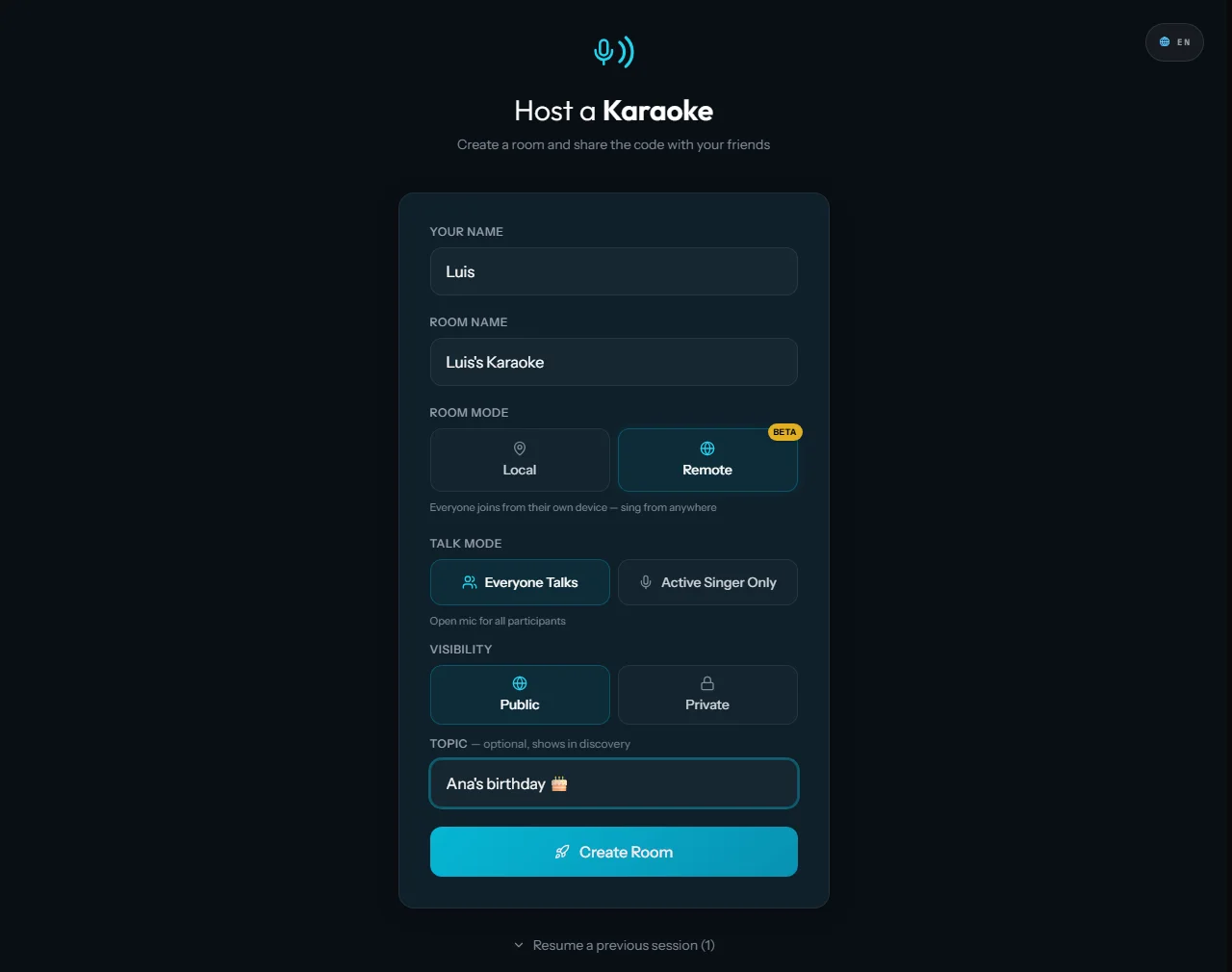 Remote selected. Talk Mode, visibility and a topic — that's the whole form.
2. Send the invitation
When nothing is playing, the room itself becomes the invitation: a giant room code, the QR, and the line "everyone here can sing" right under the guest grid. Screenshot it and drop it in the group chat, or just send the code — guests type it at loopsing.com/join.
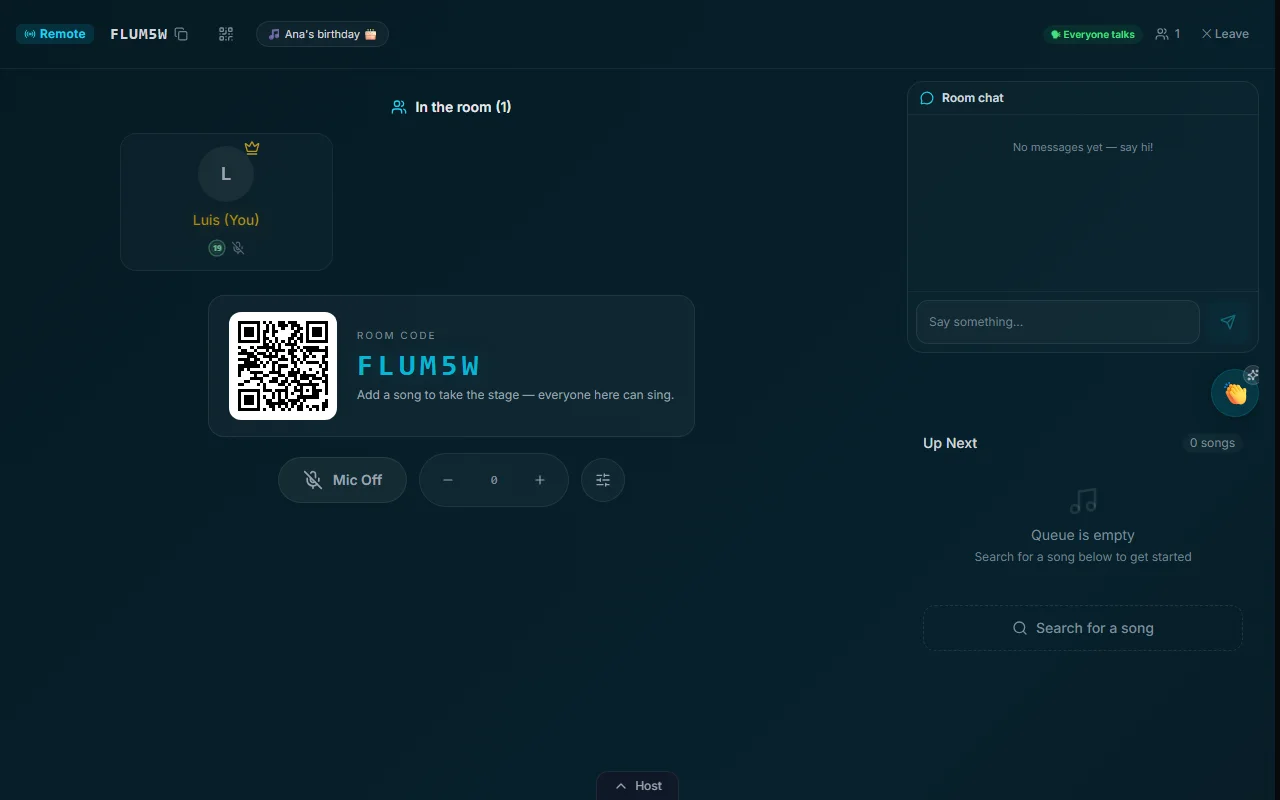 The idle room is the invitation. Screenshot, send, done.
Pro tip: Tell people to scan the QR with their phone's camera app, not from inside the chat. In-app browsers (Instagram, WhatsApp, TikTok…) wipe the session every few minutes. Loopsing will spot one and offer "Open in browser", but skipping the detour is faster.
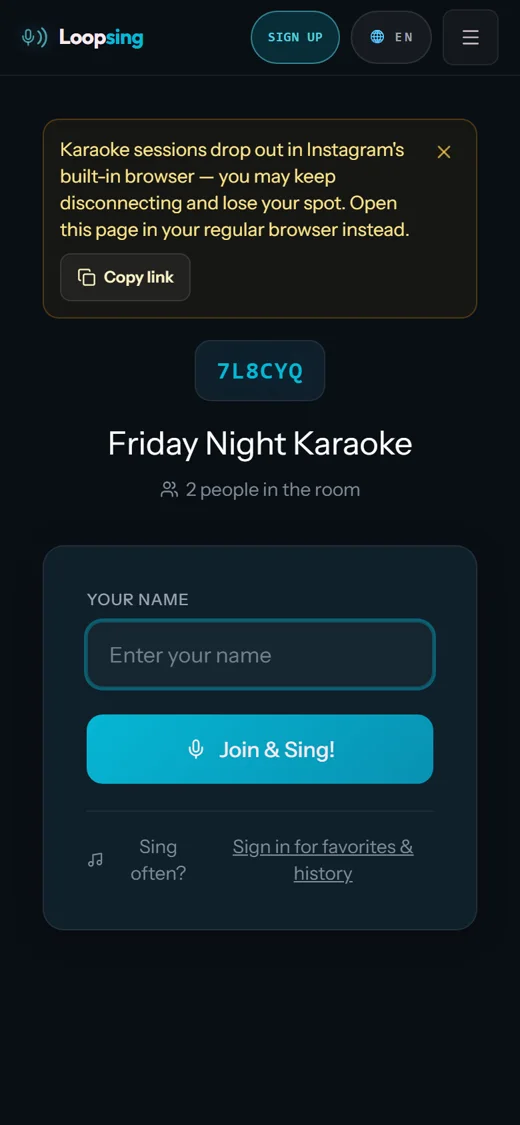 What a guest sees if they scanned from inside Instagram. Copy the link, open it in a real browser.
3. Say yes to the mic
The first time someone enters the room, Loopsing asks whether they'd like to use their mic. One answer per room, no nagging. If a browser blocks the microphone, the room shows the unblock steps for that exact browser instead of silently doing nothing.
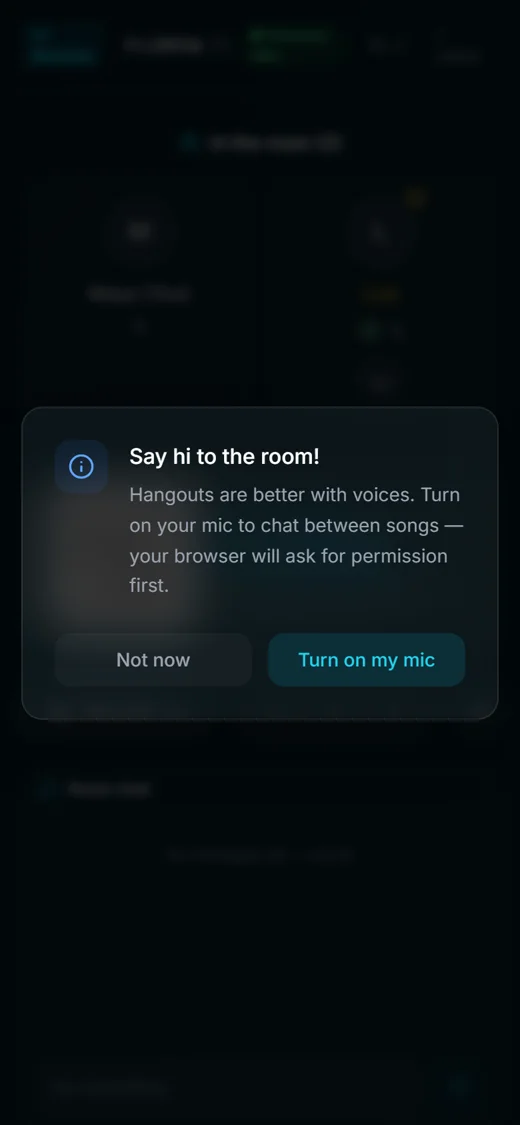 The one-time mic invitation. "Not now" is a perfectly fine answer — you can still sing along muted.
Two honest details we fixed this month:
- The green speaking glow now means someone is actually speaking — not merely unmuted.
- The mute icon means muted. A quiet person with an open mic no longer shows as mic-off.
If Talk Mode is Active Singer Only, your mic opens automatically when your song starts, and Loopsing pre-warms the permission so the browser never ambushes you with a dialog mid-chorus.
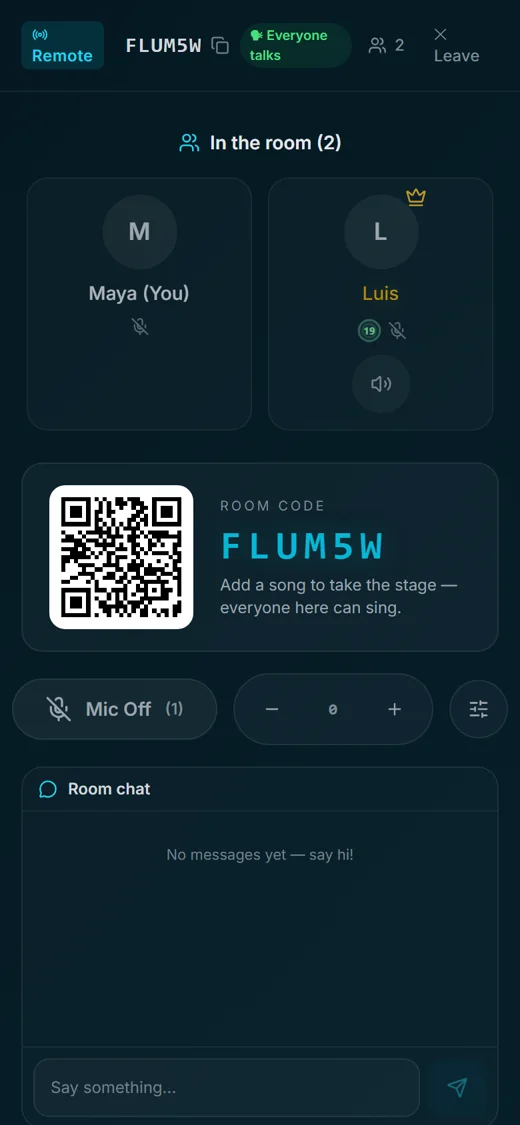 In the room from a phone: who's here, your mic, the chat, and the queue.
4. Fill the queue
Search any track and add it. Turns rotate automatically, so nobody hogs the mic. If your friends freeze at the search box (they will), point them at:
- the "For you" rail on the singer page, seeded by what the room has been singing;
- Surprise me, which picks a song, previews it, and waits for a tap — it never queues on its own;
- the recap after every song, with three suggestions for the next one.
5. Make noise
Everyone gets a reactions sheet: Claps, animated stickers, and Encore to shout out the singer. The Announcer calls each singer up in the room's language — 22 to choose from — and the lobby music between songs has its own language setting, independent of the Announcer. A Spanish Announcer with a Korean lobby playlist is a perfectly valid choice.
Hosts change all of that mid-party from Room settings & moderation (the ⋯ button in the host bar): lobby music and its language, sound effects, the Announcer and its language, Talk Mode, and the topic.
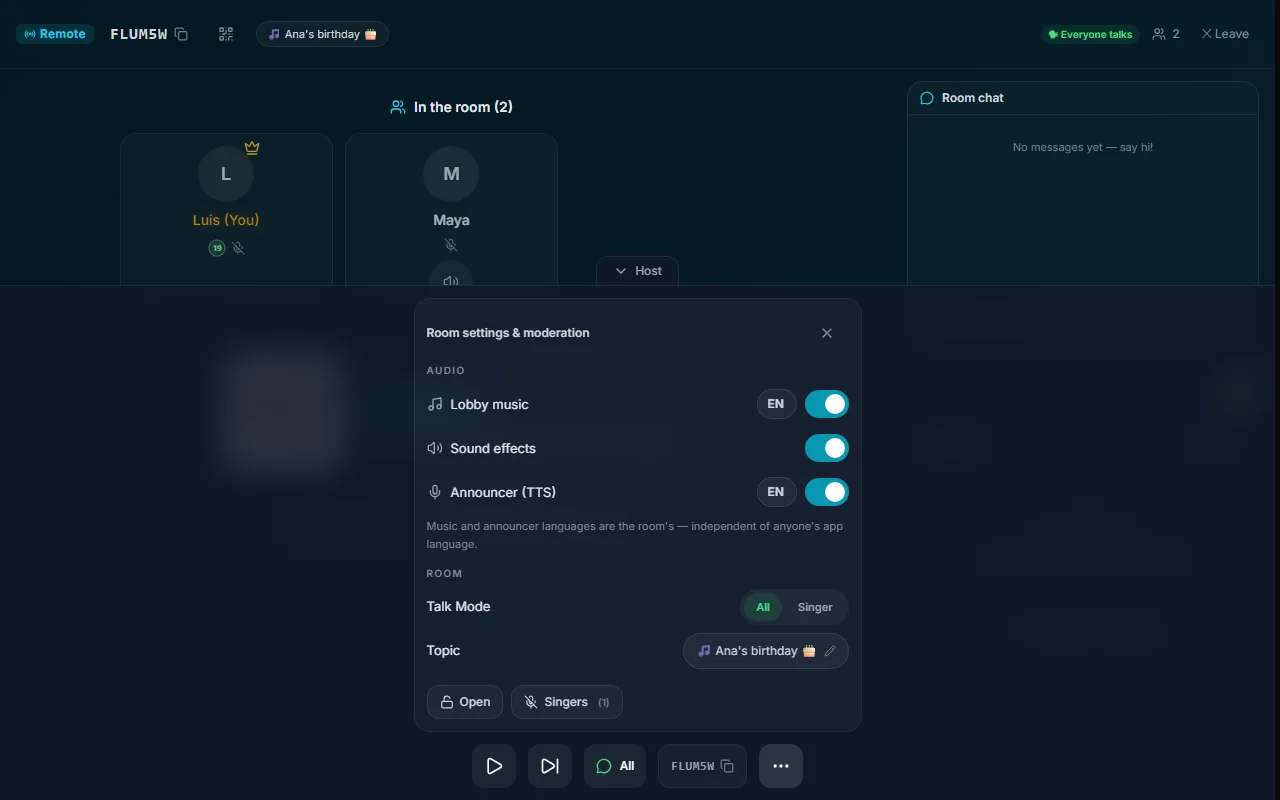 The host's settings sheet. Music and Announcer languages belong to the room, not to anyone's app language.
6. Tips for a night that actually holds together
- Headphones. Phone speakers plus an open mic equals echo. Earbuds fix it instantly.
- Different networks are fine. Home Wi-Fi, office, mobile data — Loopsing relays audio when a direct connection can't be made.
- Locking your phone is fine. Come back and Loopsing asks "continue where you left off?" Your name and your queue spot are still yours.
- Ghosts in the roster? A rough connection can leave duplicate names behind. Hosts get a one-tap Tidy duplicates that keeps the real person and clears the rest — queues are never touched.
- Hosts on Safari: one tap on Start unlocks the Announcer's audio, and it stays unlocked.
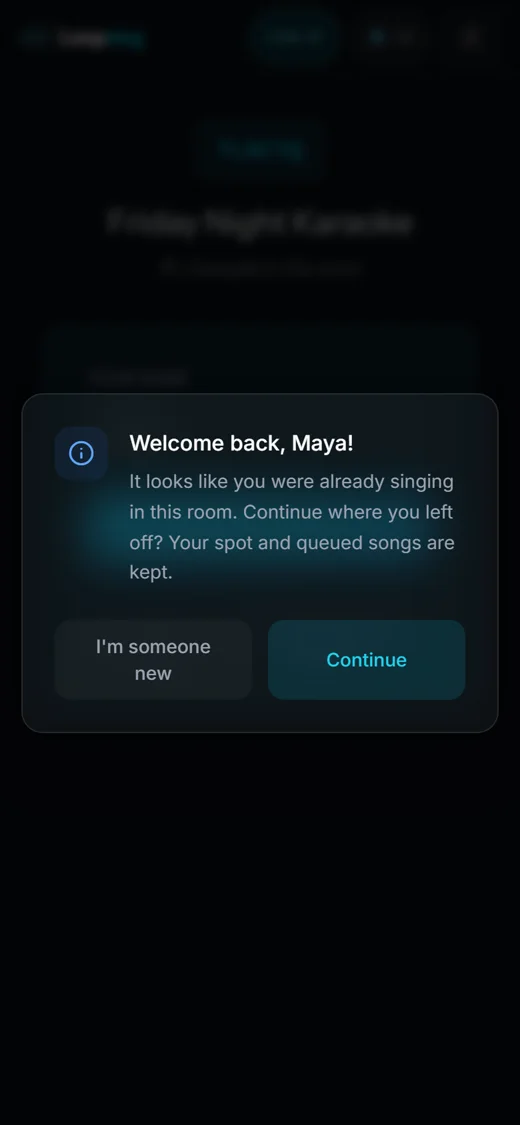 Dropped and came back? Continue picks up your name and your place in the queue.
Remote is beta — please break it
The connect path has been hardened across dozens of phone-lock storms, but three cities on three networks will always find something new. If the night falls over, tell us exactly what happened at [email protected]. Most of this month's fixes started as a message like that.
Open loopsing.com/remote, pick a topic, send the code. Lisbon, Monterrey and your couch are about to share a chorus.
Ready to sing?
Try Loopsing free — host karaoke on any screen. Guests join from their phones with zero setup.
Start hosting free